
VR game: Oculus & Leap Motion
C# project on Unity.
This article shows how to use the VR and Leap Motion technologies to build a game to learn sign language.
Github link: https://github.com/Apiquet/VR_Teach_Sign_Language
Table of contents
- Introduction
- How to manage the signs?
- Sign differentiation
- Building a dataset of sign
- Comparing two signs, score logic
- No need for the player to submit a sign
- The game
- Selection of the signs’ series
- Two phases: train and test
- Train phase
- Test phase
- User Experience
- User experience
- Next improvements
- Conclusion
1- Introduction
My main goal, through this project, was to build a game to help people learning sign language. Thanks to the leap motion technology which works good nowadays, I could precisely evaluate the player’s gesture. Then, I needed to build a dataset of signs, easily accessible (by its name) and containing enough attributes to properly evaluate the player’s sign. A system of score had to be displayed based on the comparison between the sign of the player and the signs in the database.
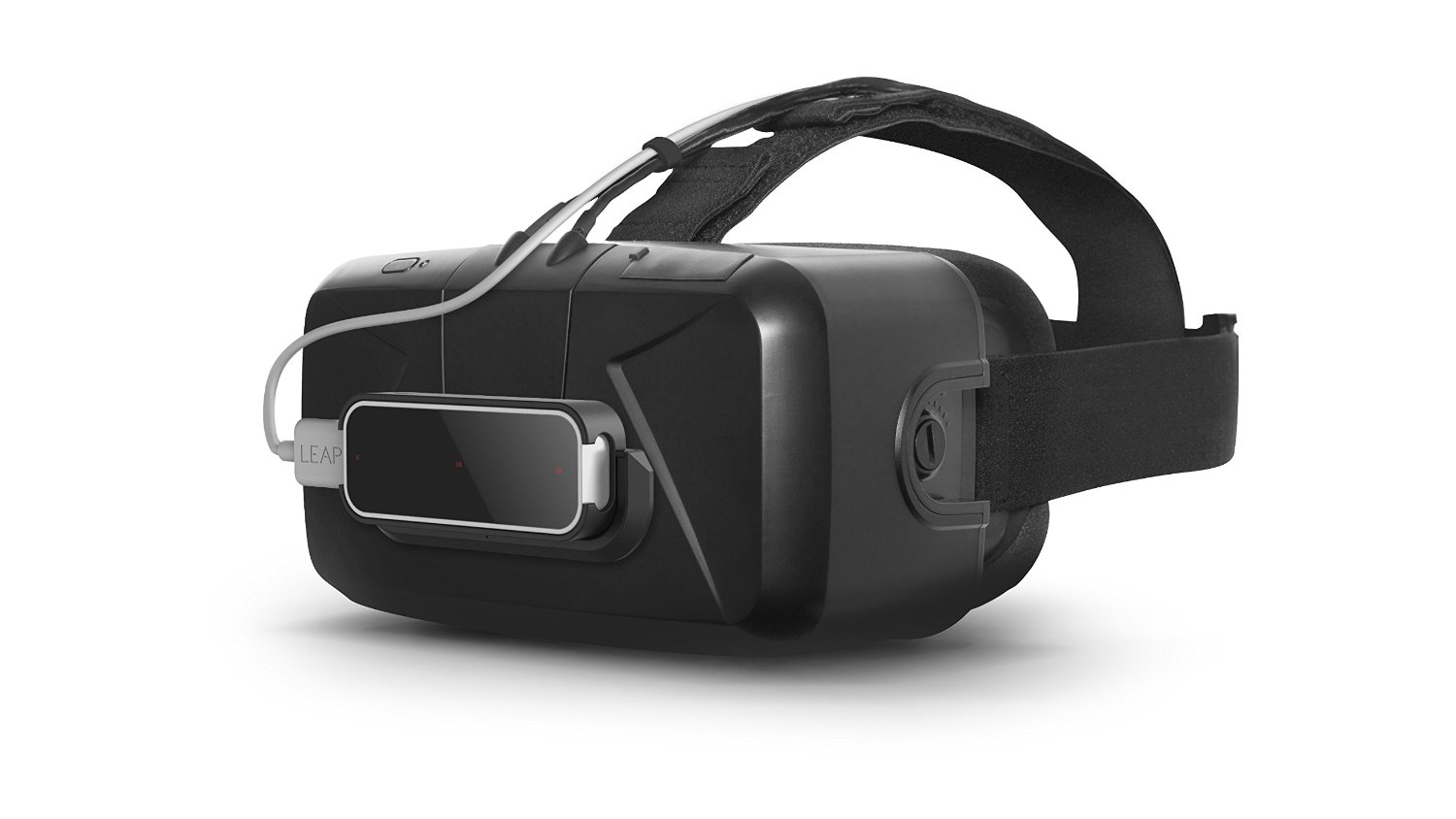
Here is the setup used:
2- How to manage the signs?
2.1 Sign differentiation
I first had to think about what characteristics describe a sign well. I decided to come up with the x, y and z directions of each finger:

The picture above illustrate how I analyse a gesture. Each yellow vector is a combination of x, y and z directions of the finger.
These direction attributes are accessible from the Hand object given by the Leap Motion’s library (Hands[X].Finger[X].Direction.x, y, z).
2.2 Building a dataset of sign
To build such a game, I needed a dataset of the signs. This dataset needed to contain the sign name and the x, y, and z directions for each finger. I wondered what format would allow quick access to the data and all the attributes. My approach was to use the JSON format, the primary key is the sign name, then I have a level for the fingers, then the x, y and z direction:

Once the format was chosen, I had to build the dataset. The fastest way I found was to code a function that writes the signs I make on a particular event to a json file. Then all I had to do was play the game, make the sign, press “S” on the keyboard, and the game would automatically save the current gesture in an appropriate format.
2.3 Comparing two signs, score logic
My approach to compare two signs is to compare each coordinate direction of each finger. To compute such comparison, I use the following formula for each finger:

, applied to (x, y, z) directions of every finger. Thanks to this formula I calculate how far each finger is from the reference finger:

To build the score, I compute the above formula on each finger, I sum the results and scale between 0 and 100.
2.4 No need for the player to submit a sign
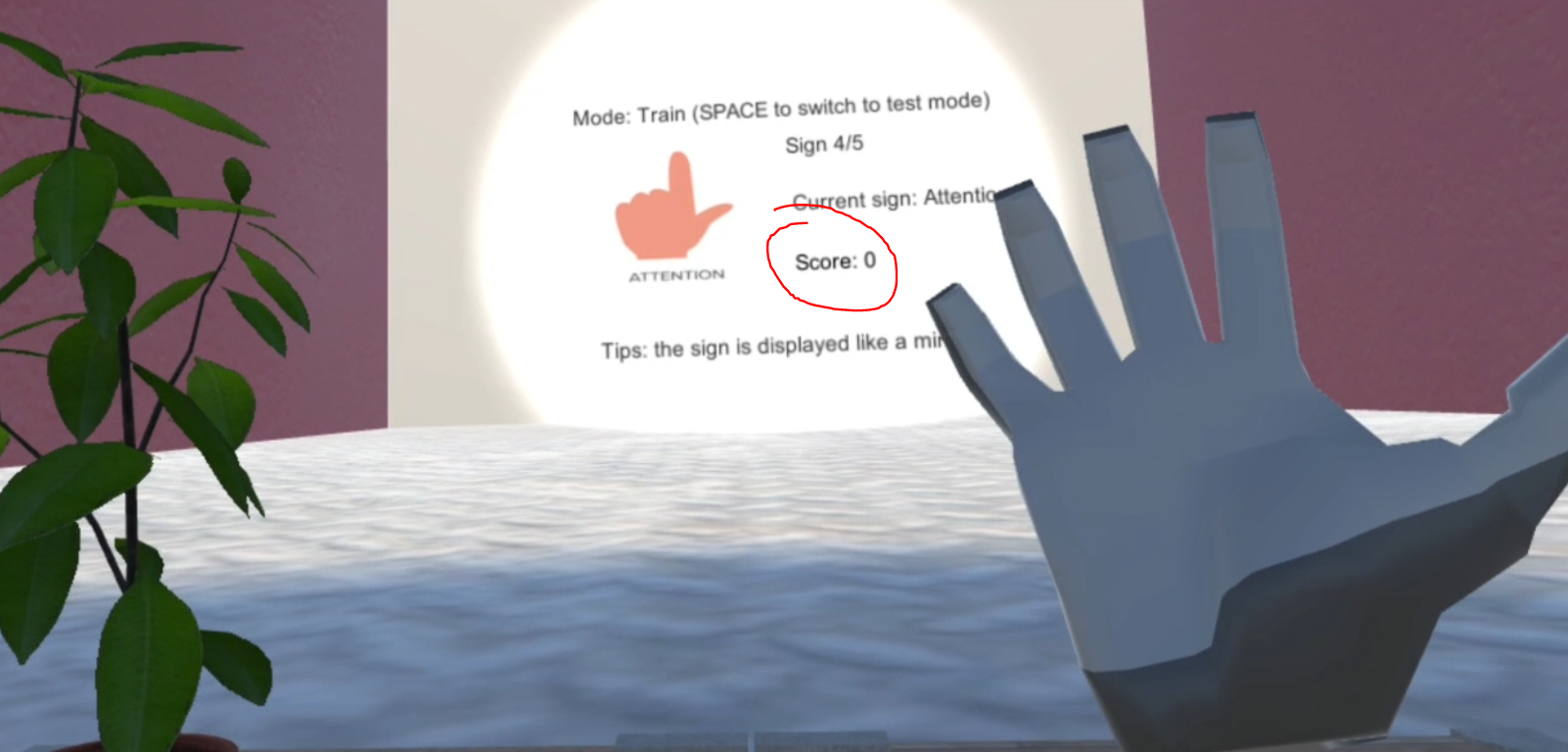
I wanted a good immersion in the game on the part of the payer, so I couldn’t ask him to press a button to submit his sign. I decided to evaluate his sign in real time! The player can see the evolution of his score in real time according to his gestures.
Demonstration of the score computed based on the player’s error:


3- The game
3.1 Selection of the signs’ series
Since the player cannot learn all the signs in one lesson, I proceed by series. Five signs are randomly selected from the data set, which makes up a series. The signs are then shown in sequence to the user.
3.2 Two phases: train and test
3.2.1 Train phase
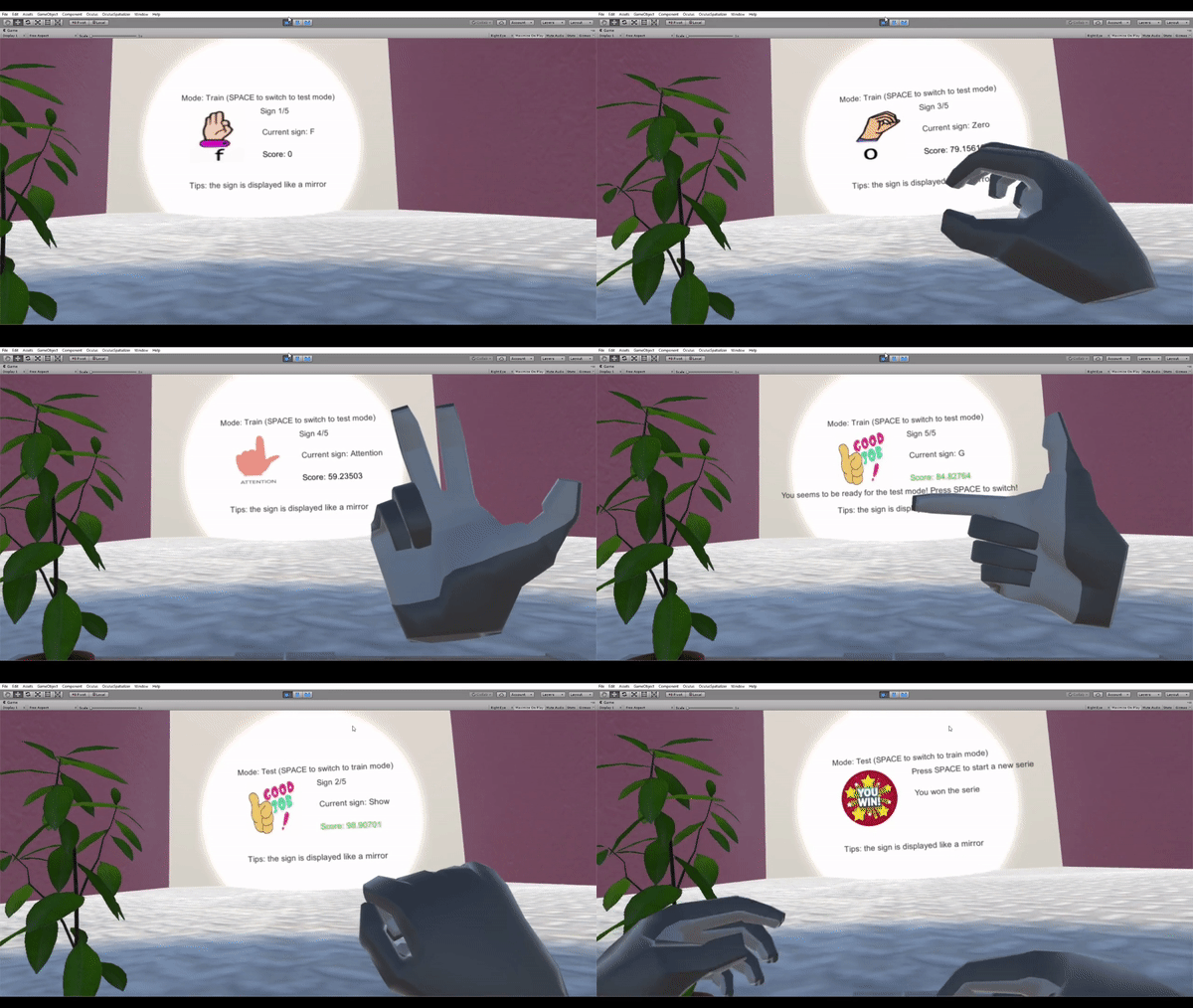
During the train phase, the player sees the sign and its meaning; it can be a letter, a number or a word. Once the player scores well on the displayed sign, a success animation is started and then the next sign is displayed.
When the user finishes a series in training mode, two options are possible: to switch to test mode using the space key, or to retry the training on the series.

3.2.2 Test phase
For the test phase, only the meaning of the sign is displayed. If the user does not remember a sign, he can switch to the train mode at any time. He finishes the series when he has obtained a good score on each sign in test mode.

4- User Experience
4.1 User experience
Since the user does not need to press a button to submit a sign for evaluation, immersion is enhanced. Indeed, I evaluate his gesture in real time and I also update the score. I choose the evaluation rate according to my user experience, a little more than once a second seems comfortable for the user.
I chose to put a table in front of the player to prevent him from feeling free to move. This allows him to concentrate on the signs displayed. I also placed a plant on the table to help him relax… A spotlight directed towards the wall where the signs are displayed also helps to stay focused. I also took care to make the room big enough to avoid the player feeling oppressed.
The game was designed to simulate a room where the player is taking a lesson. Based on the feedback from people who played the demo, at first it’s a little confusing to understand that the signs have to be made like in a mirror. But once people understand it, it becomes really intuitive.
4.2 Next improvements
I could replace the images showing the sign with an avatar that shows the correct movement in 3D. Such an improvement should help the player and make the sign recognition more intuitive. Another improvement could be the addition of a test mode where the player tries to write sentences. I can recognize the signs from the database and print the words based on this detection.
5- Conclusion
Thanks to this project, I learned how to use Unity. I am now able to create objects, load textures, play with light (ambiance and spot), import assets and use them. I was also able to improve my object-oriented programming skills in this new field.
Building this game to try to provide the best possible user experience was a very good experience. Making a game to learn sign language was a great project that I am glad to have done.
The demo:

The project:
 AI Code Wizards