
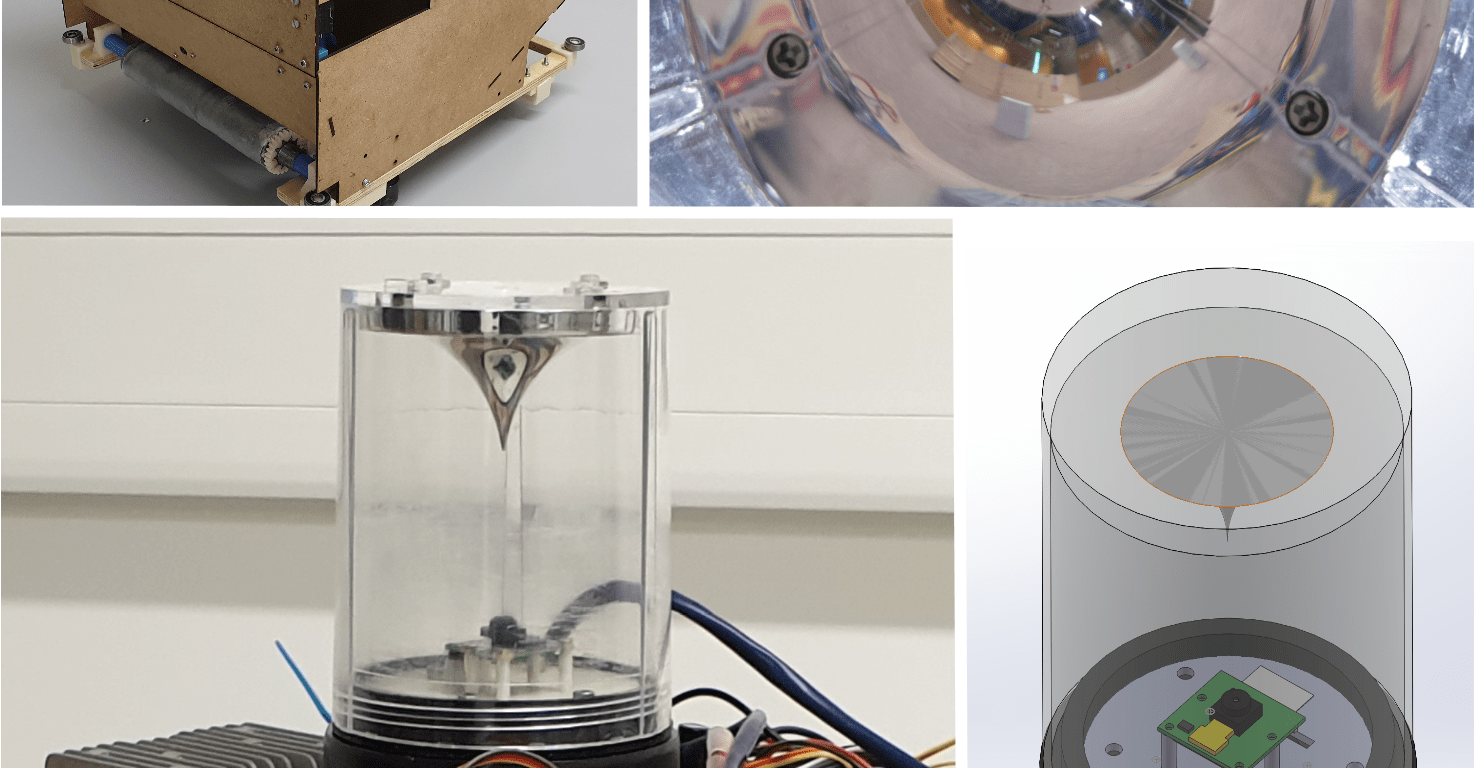
Home-made Beacon
Python and OpenCV project.
This article will show how to get the position of an object and its orientation thanks to an homemade Beacon.
GitHub link: https://github.com/Apiquet/Visual_recognition/tree/master/beacon
Table of contents
- The Arena
- The camera set up
- Point of view of the camera
- Calculating each light’s angle
- Shutter speed
- Find each led on the image
- How to find the angle of each light
- Triangulation
- Results
1- The Arena
This beacon triangulation was applied to a robot for the EPFL robotics competition. Indeed, thanks to the provided arena, a beacon was a good technique to know the position and orientation of the robot in any place. To allow its use, the arena was equipped with 4 colored lights, one per corner:


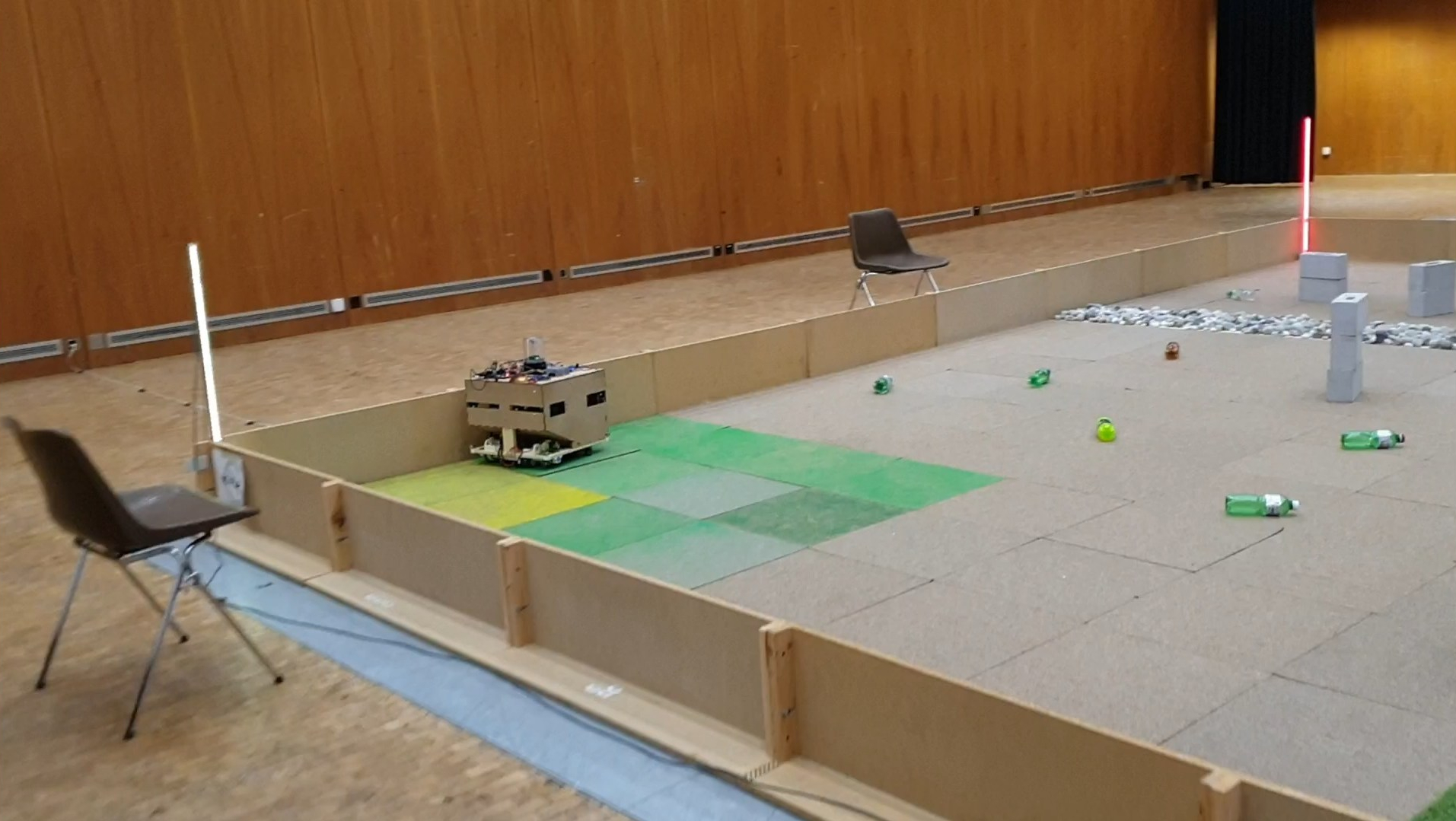
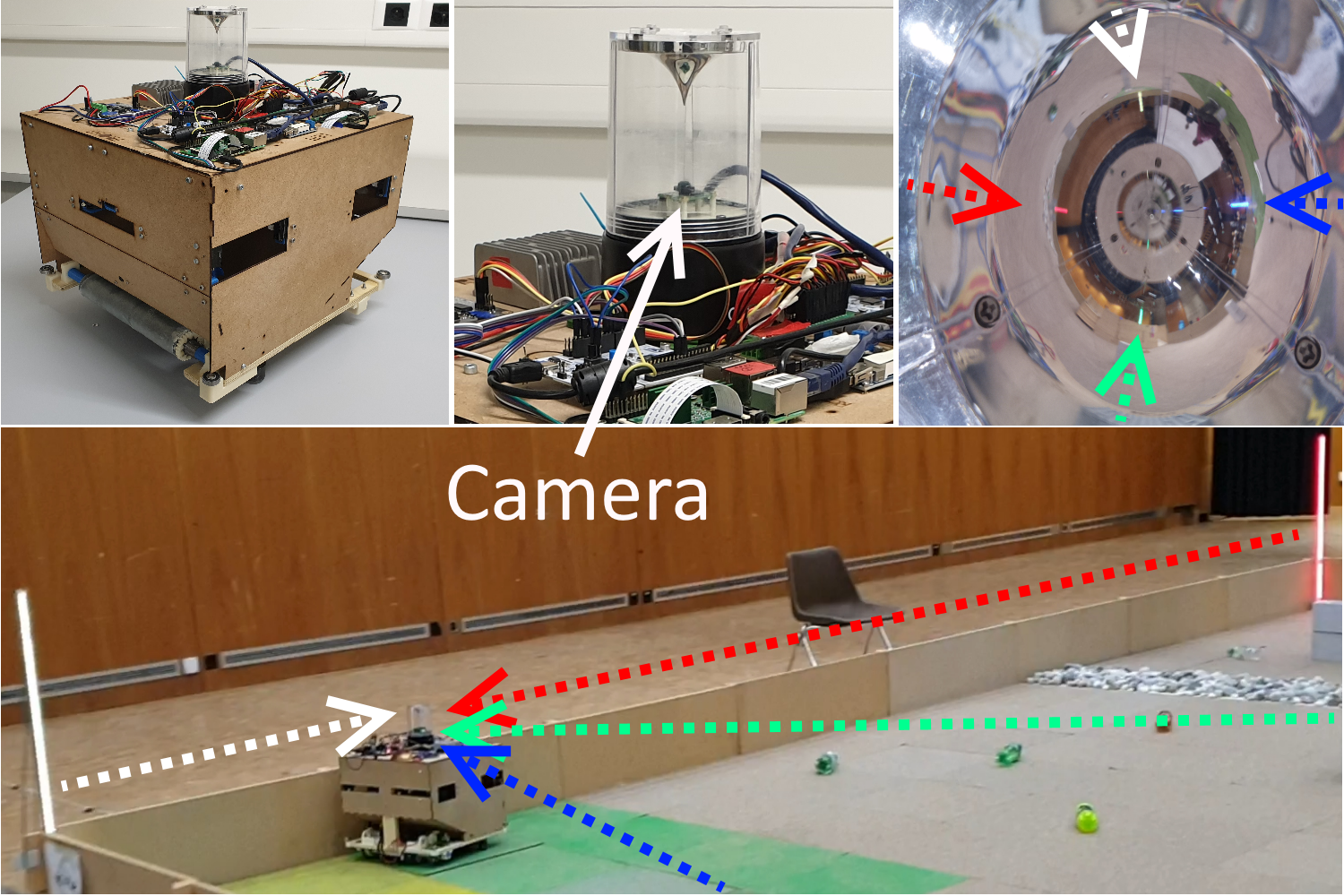
To capture at any time the four lights (or at least 3) allowing to determine the position and orientation of the robot, a reflective surface was used.
Here is a brief explanation of the image header:
2- The camera set up
A cone found on a lamp in a hardware store was used as a reflective surface:


The lamp had to be replaced by the camera, which has to look up and be perfectly centered. To achieve this, it was necessary to make a 3D model that will be 3D printed:
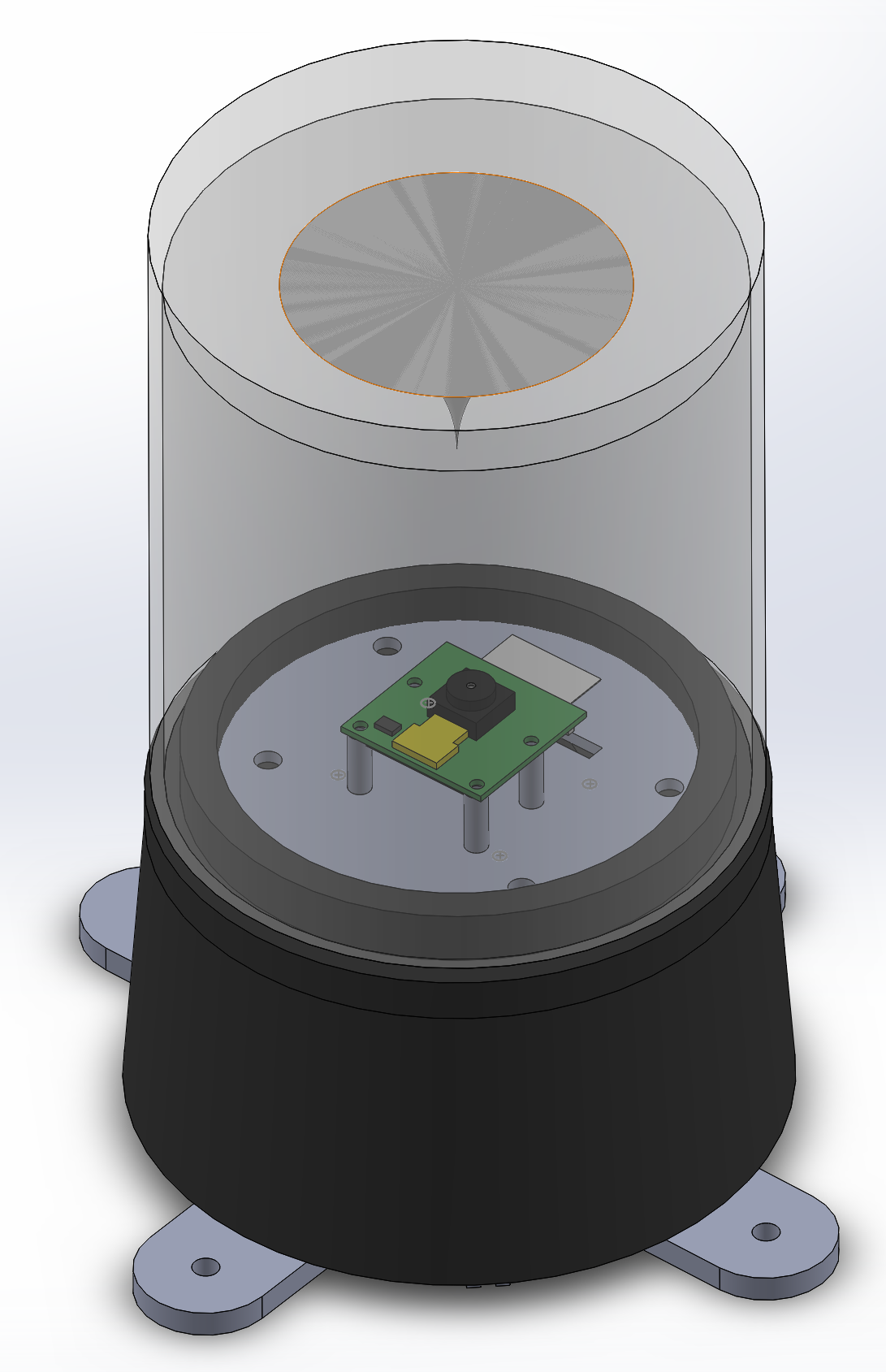

The black part and the cone on top are from the lamp. In the middle we have the Raspberry PI camera and the grey parts are the 3D printed parts.
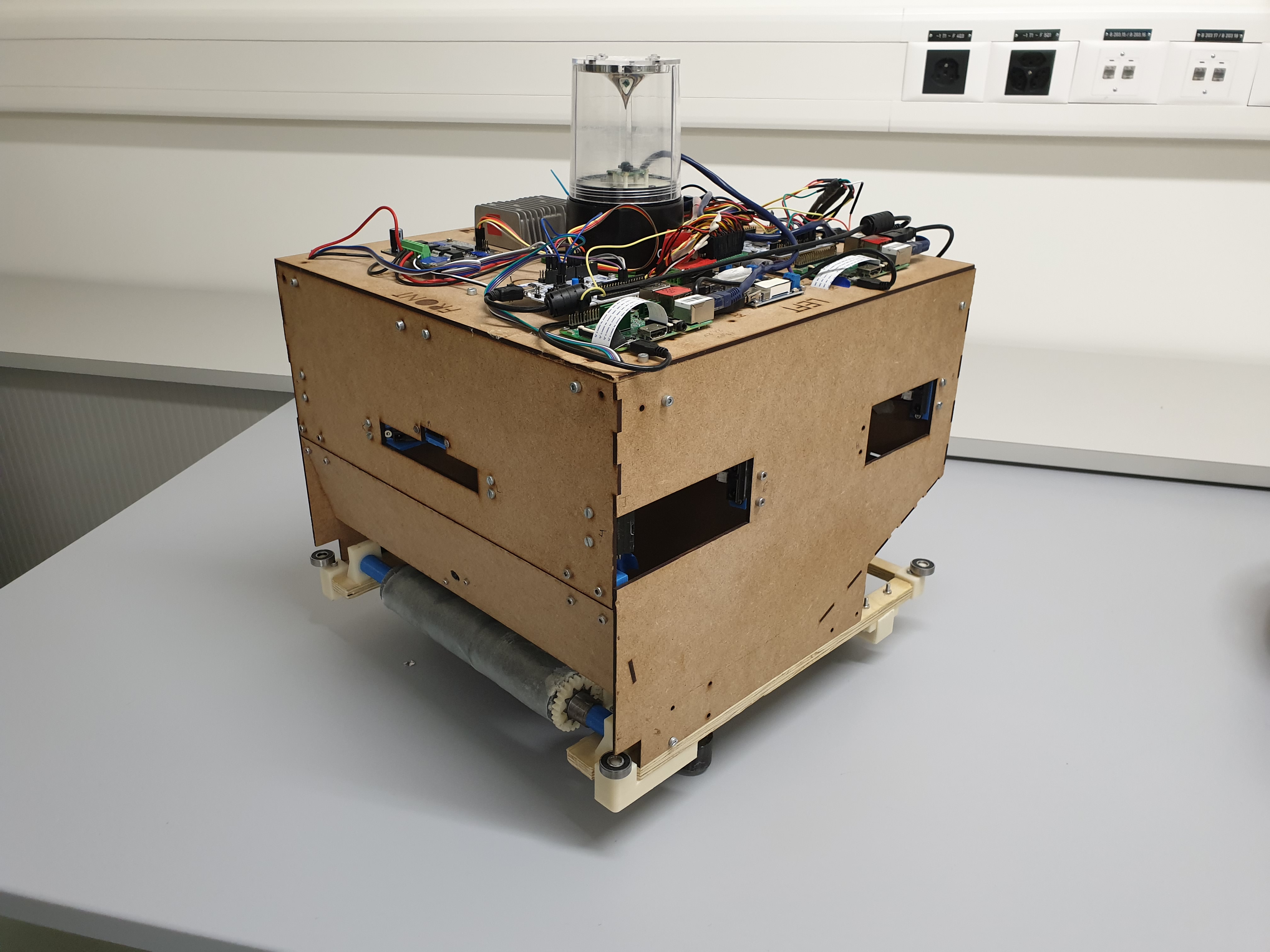
The final robot:

3- Point of view of the camera
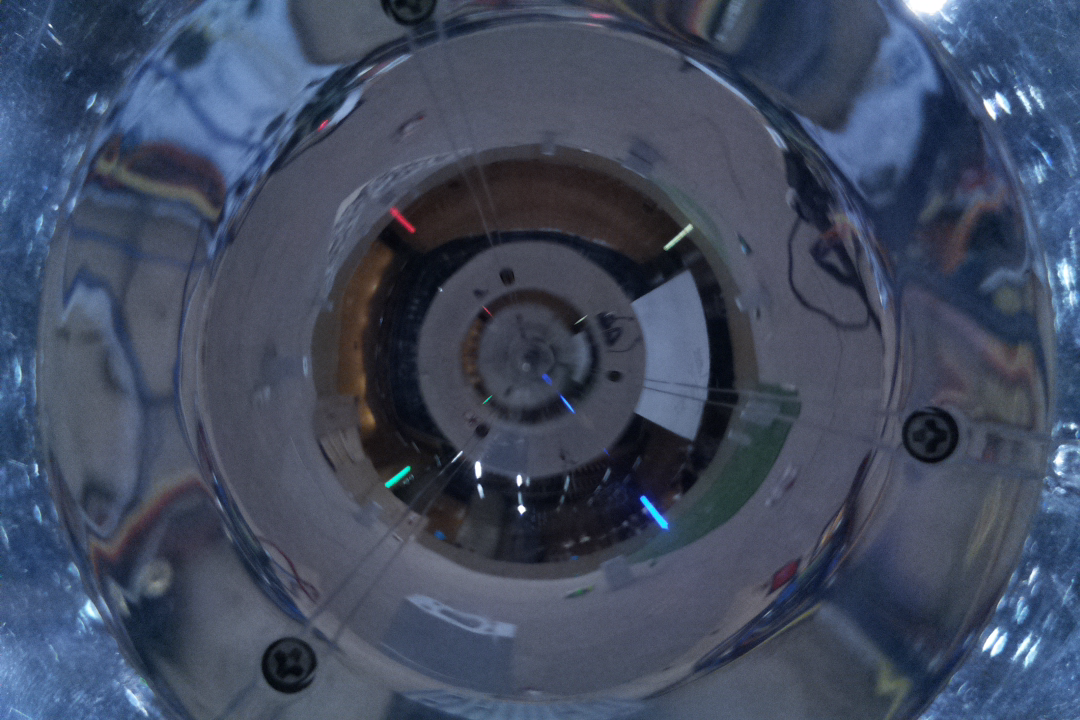
Here is an image from the camera:

You can see each light in the arena on the cone. At this stage, only the angles between the front of the robot and each light had to be found to calculate the position and orientation of the robot.
4- Calculating each light’s angle
4.1 Shutter speed
The camera’s shutter speed (the length of time the camera is exposed to light) allows you to bring out the lights that are strong to have the following result easier to filter:
4.2 Find each led on the image
To find each LED, an HSV filter can be used:
boundaries = [
   ([0, 0, 180], [255, 153, 255], 'r', (0,0,255), (0,8000)),
   ([230, 141, 0], [255, 225, 255], 'b', (255,0,0), (8000,0)),
   ([0, 200, 97], [255, 255, 255], 'y', (0,255,255), (0,0)),
   ([77, 235, 0], [220, 244, 255], 'g', (0,255,0), (8000,8000))
]
for (lower, upper, title, color,pos) in boundaries:
   # create NumPy arrays from the boundaries
   lower = np.array(lower, dtype = "uint8")
   upper = np.array(upper, dtype = "uint8")
   # find the colors within the specified boundaries and apply
   # the mask  mask = cv2.inRange(threshImg, lower, upper)
   # Apply a dilatation on the mask
   kernel = np.ones((3,3),np.uint8)
   mask = cv2.dilate(mask,kernel,iterations = 6)
   output = cv2.bitwise_and(threshImg, threshImg, mask = mask)
The code above allows to process the 4 filters: red, blue, yellow and green on the image named: threshImg.
4.3 How to find the angle of each light
First of all, the front of the robot had to be found on the camera. As the camera is fixed on the robot, it is always at the same place on the image:

Then, as the camera looks at the reflection in the mirror cone, the correct representation of the arena can be obtained by flipping the image:
threshImg = cv2.flip( threshImg, 0 )

Then, to avoid noise, the image can be masked:

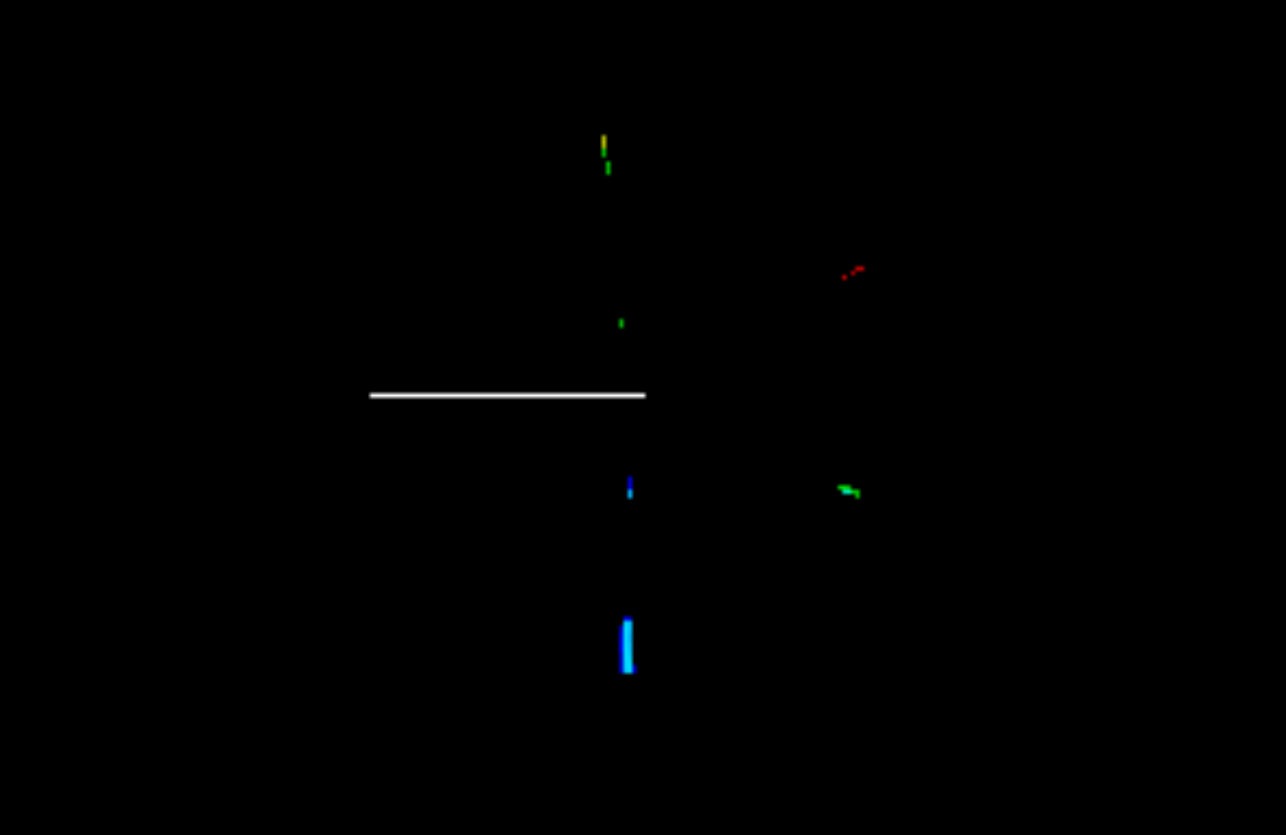
Each light can be found with a threshold filter:
Then, each angle had to be calculated:

Each color can be separated with the findContours function provided by OpenCV:
# find contours in the binary image
contours, _ = cv2.findContours(gray_image,cv2.RETR_TREE,cv2.CHAIN_APPROX_SIMPLE)
try :
   c = max(contours, key = cv2.contourArea)
   temp = c.reshape(c.shape[0],2)
   closest = closest_node(center, temp)
   cX, cY = temp[closest]
   # calculate moments for each contour
   '''M = cv2.moments(c)
   # calculate x,y coordinate of center
   cX = int(M["m10"] / M["m00"])
   cY = int(M["m01"] / M["m00"])'''
   vect1 = findVec(center,(center[0]-200,center[1]))
   vect2 = findVec(center, (cX ,cY))
   angle = math.degrees(calcul_angle(vect1,vect2))
...
4.4 Triangulation
The triangulation formula can be found online:
http://www.telecom.ulg.ac.be/triangulation/
A function that takes as input the list of angles and the list of light coordinates can be coded to obtain the position and orientation of the robot:
def find_robot_pos(angles,lights_coordinates):
    a1,a2,a3 = math.radians(angles[0]), math.radians(angles[1]), math.radians(angles[2])
    x1,y1 = lights_coordinates[0]
    x2,y2 = lights_coordinates[1]
    x3,y3 = lights_coordinates[2]

    x1_ = x1-x2
    y1_ = y1-y2
    x3_ = x3-x2
    y3_ = y3-y2

    T12 = 1/math.tan(a2+0.0001-a1)
    T23 = 1/math.tan(a3+0.0001-a2)
    T31 = (1-T12*T23)/(T12+T23)

    x12_ = x1_ + T12*y1_
    y12_ = y1_ - T12*x1_
    x23_ = x3_ - T23*y3_
    y23_ = y3_ + T23*x3_
    x31_ = (x3_+x1_) + T31*(y3_-y1_)
    y31_ = (y3_+y1_) - T31*(x3_-x1_)

    k31_ = x1_*x3_ + y1_*y3_ + T31*(x1_*y3_-x3_*y1_)

    D = ((x12_-x23_)*(y23_-y31_))-((y12_-y23_)*(x23_-x31_))

    x = x2 + (k31_*(y12_-y23_))/D
    y = y2 + (k31_*(x23_-x12_))/D

    angle = math.atan2(y2 - y , x2 - x) - a2

    return x,y,math.degrees(angle)
5- Results
To test the program, multiple test images can be taken of the real arena with the positions and orientation of the real robot. The program must then be compared to this data set to verify its results:

Then a program can be created to load the test images, apply the program to obtain the position and orientation from the Beacon program, and compare them with the desired results:

The error was between 4cm and 17cm on an 8 meter by 8 meter arena with a 50cm by 50cm robot. This accuracy was more than sufficient for accurate behavior on the arena.
The project: https://github.com/Apiquet/Visual_recognition/tree/master/beacon
 AI Code Wizards